Create your PostToDM account
Sign up takes about 2 minutes. You start on the Free plan and can upgrade any time.
Steps
Open the PostToDM app
Go to app.posttodm.com on a computer or phone. You will see the log in screen.

PostToDM log in screen with the Create a free account link Click Create a free account
Below the log in button, click Create a free account. The form changes to sign up.

Sign up form with name, email, password and business name Fill in your details
- Your name: your own name.
- Email address: this is your login. Use one you check daily, alerts go here.
- Password: at least 10 characters.
- Business or workspace name: your brand, for example your coaching business. You can change it later.
- Invite code: only shown during early access. Leave it empty if you do not see it.
Or sign up with Google
Prefer no password? Click Sign up with Google and pick your Google account. PostToDM only reads your name and email.
If you see “New here? Enter your invite code below”, type the invite code we sent you, then tap Sign up with Google again.
Look around the side menu
After sign up you land on the Dashboard. The side menu is grouped like this:
Group What is inside (top) Dashboard: your channels and totals for the last 30 days Engage Comments, Messages, WhatsApp (coming soon), Missed comments, Moderation Automate Automations, Activity log, Leads Publish Posts (planner and calendar) Insights Growth Setup Accounts, Settings 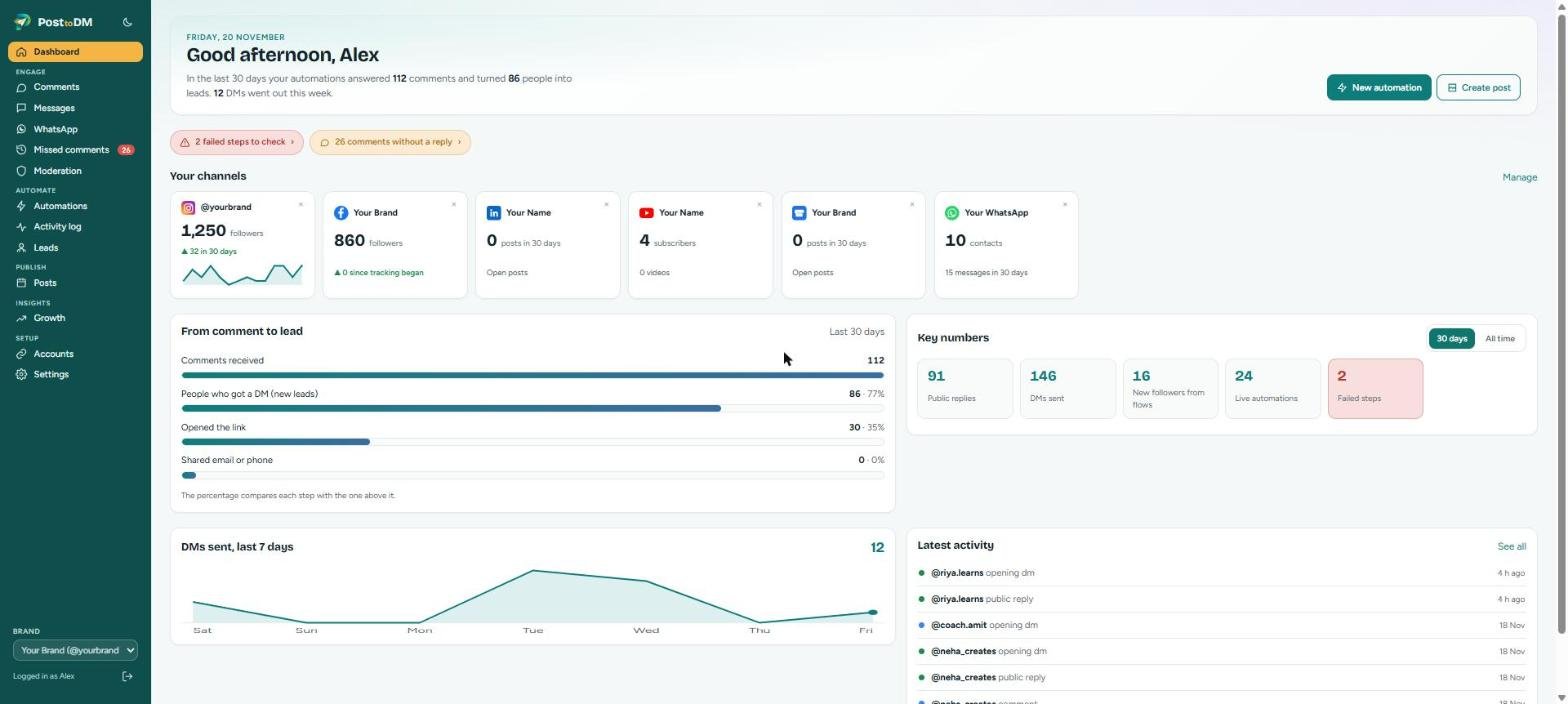
PostToDM Dashboard with the side menu Forgot your password?
On the log in screen click Forgot password?, type your email and open the link we send. Then use Back to log in.
Common questions
Do I need a credit card to sign up?
No. The Free plan needs no card. You only pay if you choose Creator or Pro.
Can I use PostToDM on my phone?
Yes. The app works in your phone browser. Building automations is easier on a laptop.
Can I change my email later?
Your email is your login. Write to support and we will change it for you.