Team members and roles
Share the work, not your password. Each person gets their own login and only the access you choose.
Roles at a glance
| Role | What they can do |
|---|---|
| Owner | Everything, including billing, plan, team, settings and connecting channels |
| Manager | Full on every channel: posts, automations, comments and messages, leads. Not the plan, team or settings |
| Publisher | Publishes and schedules on every channel; edits and deletes their own posts |
| Responder | Sees every channel and replies to comments and messages; sees leads |
| Viewer | Sees everything except private YouTube videos; cannot change or send anything |
| Custom | Your own choice per channel, set with Customise |
Steps
Open Team
Go to Settings, then the Team tab. Only the workspace owner sees this. The heading shows how many seats you have used.
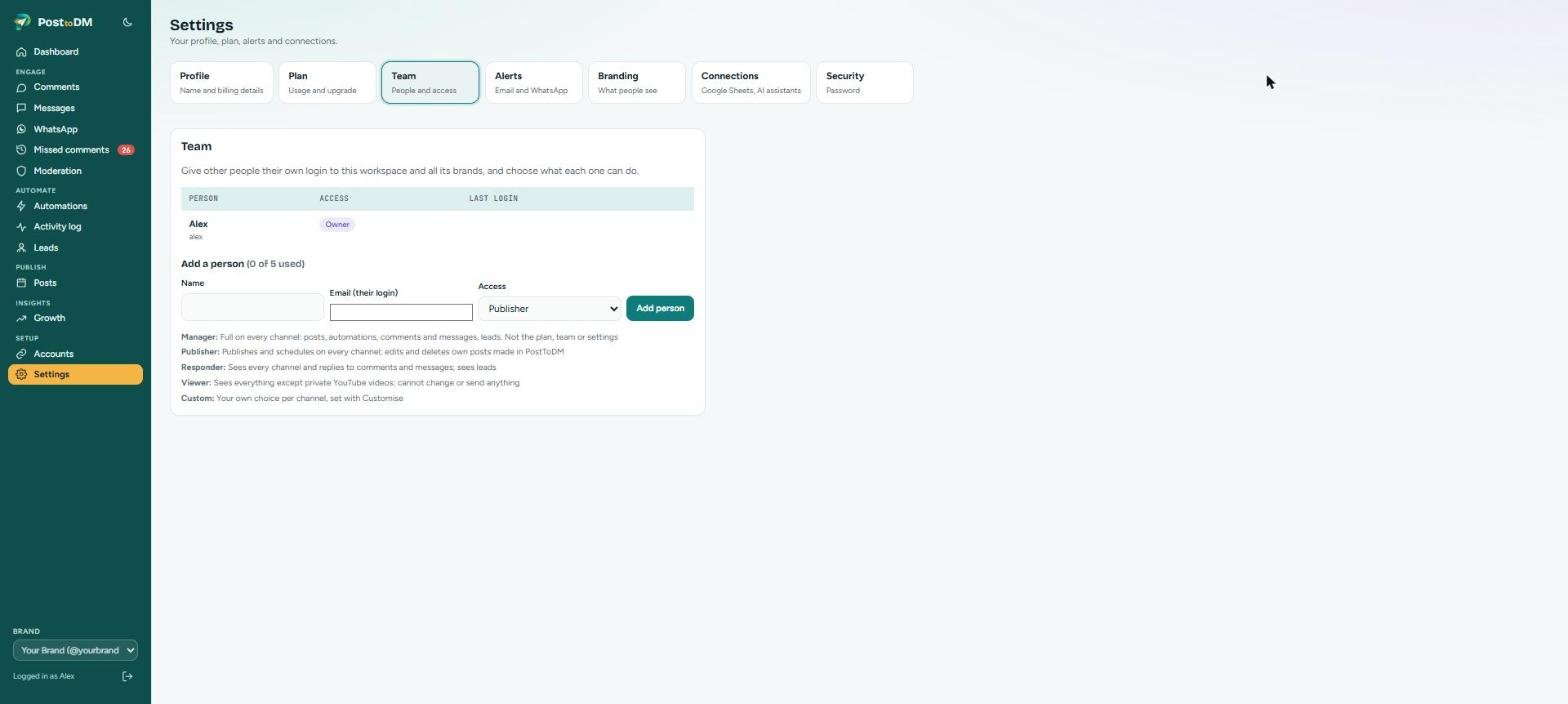
Team screen with members and the Add a person form Add a person
Under Add a person, type their Name, their Email (their login), choose Access, then click Add person. PostToDM emails them their login details, or shows a password you can share if email is not set up.
Fine tune with Customise
Click Customise next to a person to set each channel to Hidden, View, Draft, Publish or Full, and switch leads and inbox on or off.

Customise access per channel for one team member Remove someone
Click Remove next to their name. They lose access at once.
Common questions
How many people can I add?
It depends on your plan. The Team screen shows how many seats are used and how many you have.
Can a team member see billing?
No. Billing, team, settings and connecting channels are for the owner only.