Missed comments and leads
Never lose a lead because you were asleep or the automation was not live yet.
Steps
Open Missed
Click Missed comments under Engage. The number next to it shows comments that got no reply at all, for example ones made before your automation was live.
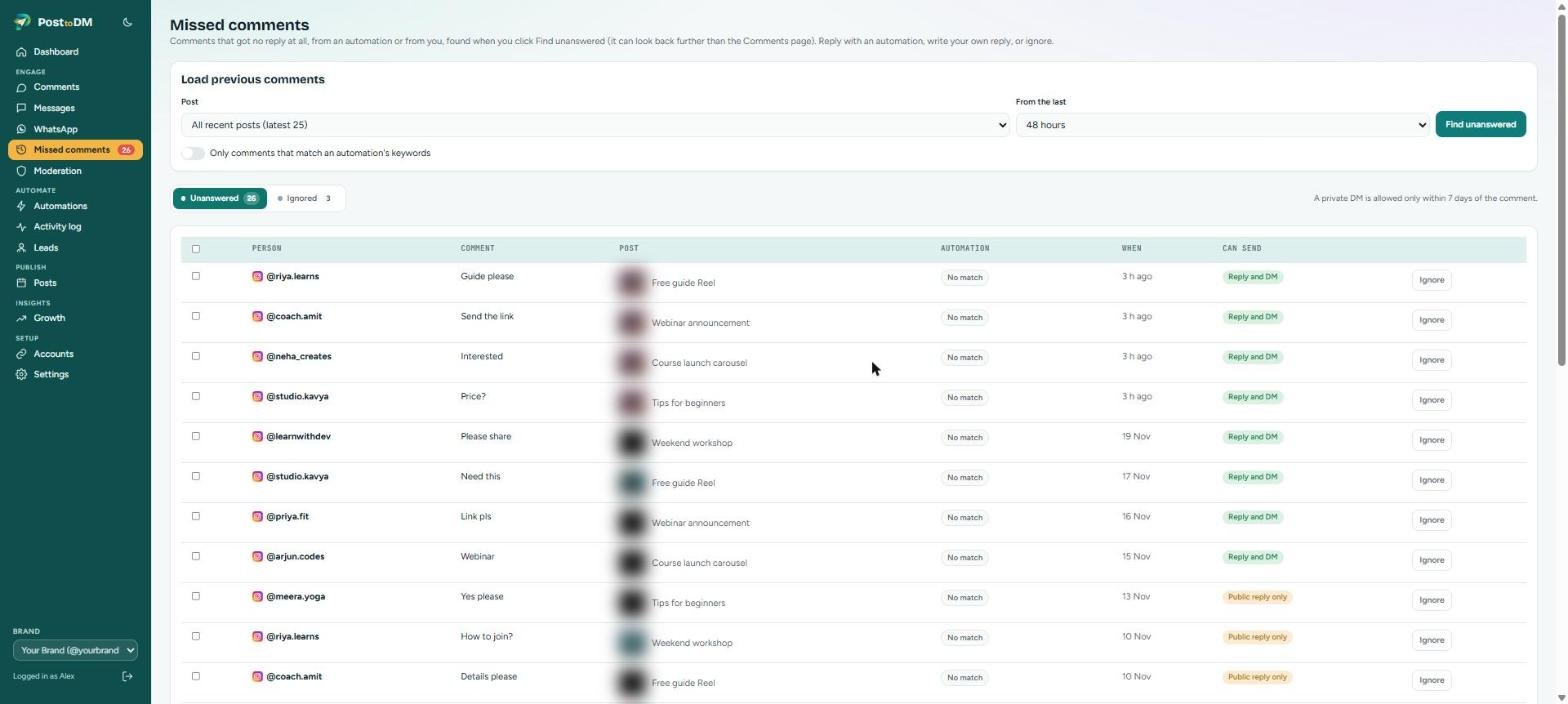
Missed screen listing comments with no reply Load older comments
Under Load previous comments pick a post (or all recent posts), choose From the last, then click Find unanswered. The Can send column shows Reply and DM, or Public reply only once the 7 day DM window has passed.
Select and act
Tick the comments, then choose Run an automation to send them your automation, Reply to write your own reply, or Ignore to hide them. Hidden ones move to the Ignored tab and come back with Restore selected.
See your leads
Open Leads under Automate. Every person who got a DM is listed with keyword, automation, email and phone (if asked), Follows, Clicked and date. Filter by date, follows and clicked. To download, choose Excel file and click Export.
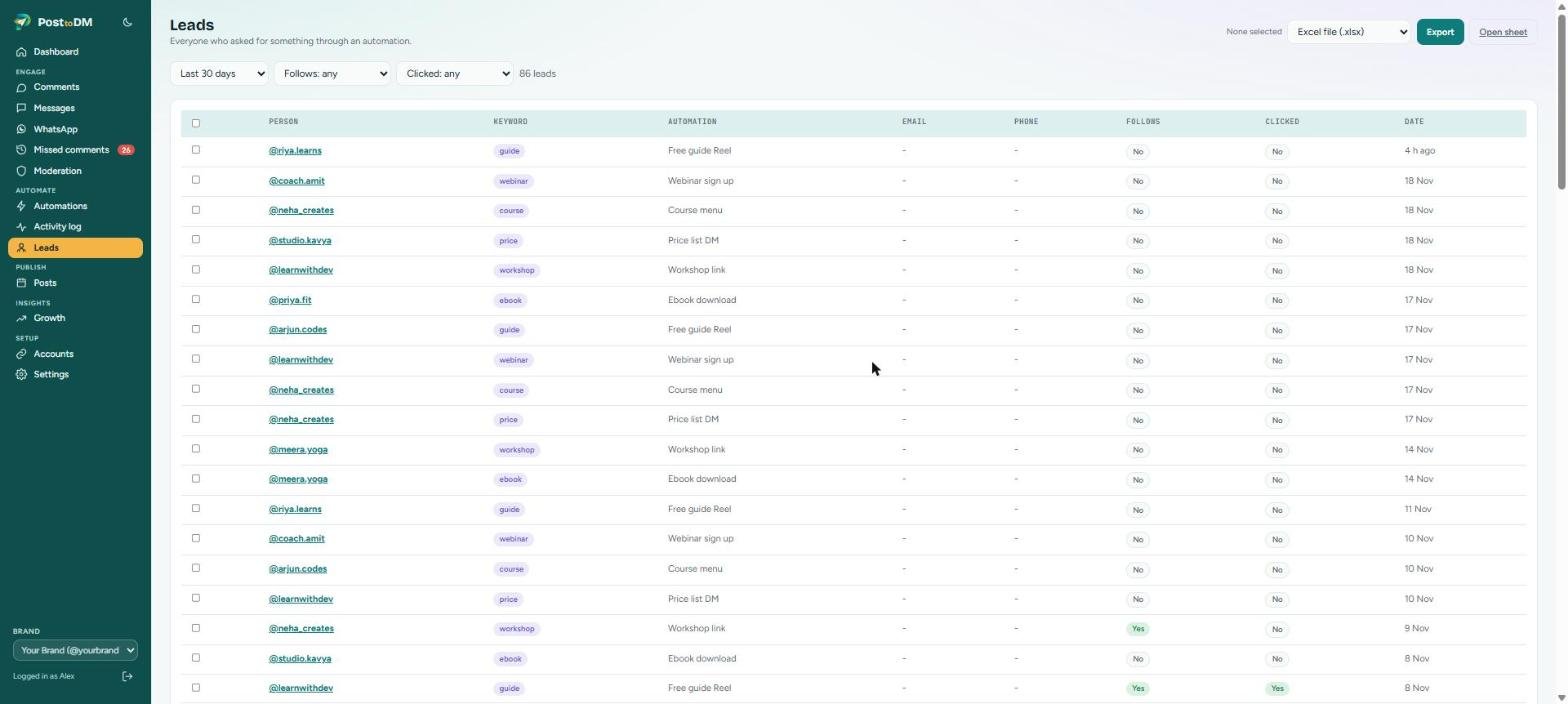
Leads table with keyword, follow status and clicked columns Export to Google Sheets
In Settings, the Connections tab, Google Sheets export: share your sheet as Editor with the address shown, paste the Google Sheet link, click Save, then Export now. Turn on Add new leads to this sheet automatically to send new leads every 5 minutes.
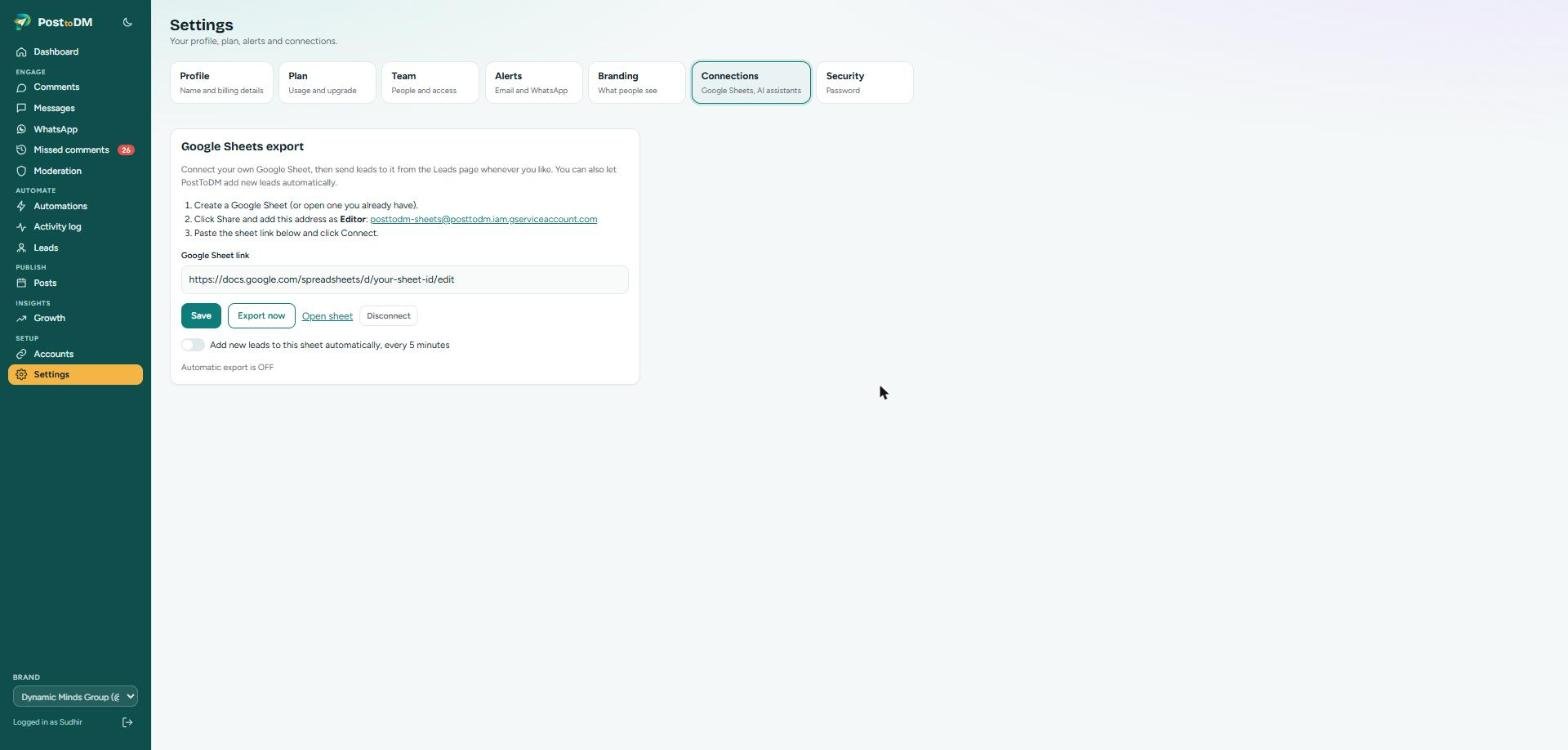
Google Sheets export settings
Common questions
Why can I only go back 7 days?
Instagram allows a private reply to a comment only within 7 days of the comment.
Do missed comments use my message allowance?
Yes, each DM sent counts like any other automated DM.